WiZone Portal
Network Access Server (NAS)
NAS page lists all connected authentication servers (pfSense or Mikrotik) registered under your organization. Administrators can monitor each device’s connection health, authentication performance, and session timeout policies.
Overview Table
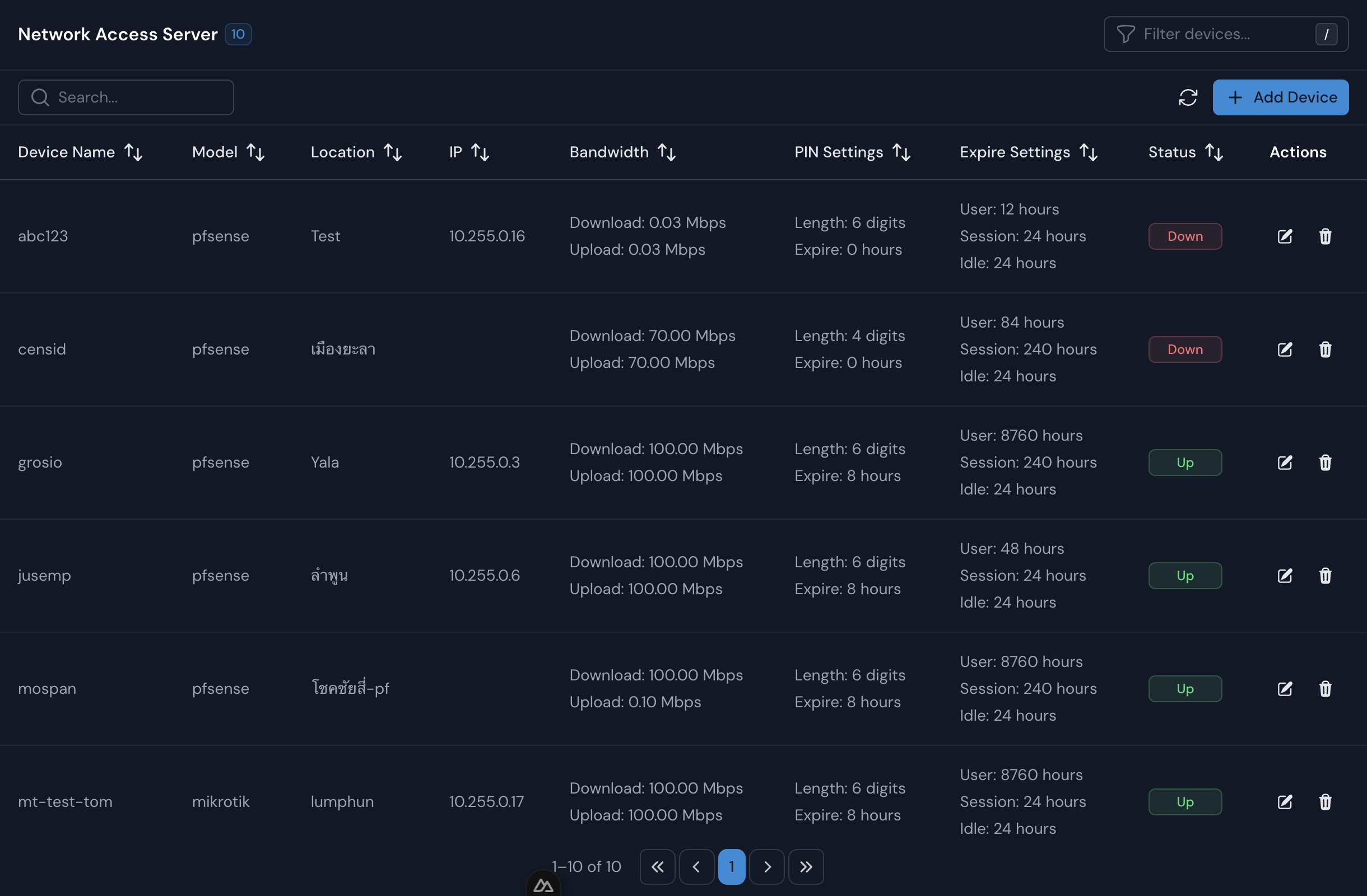
| Column | Description |
|---|---|
| NAS Name | The name assigned to the NAS (e.g., mospan, jusemp, stroc). |
| Model | NAS type — typically pfSense or Mikrotik. |
| Location | Site or physical location of the installed NAS. |
| IP | Shows NAS IP. |
| Bandwidth | Shows current upload/download capacity. |
| PIN Settings | Defines PIN length and validity period for temporary user logins. |
| Expire Settings | Displays timeout configuration for users, sessions, and idle connections. |
| Status | Indicates live connection state — Up for online, Down for offline. |
| Actions | Options to edit or delete the NAS configuration. |
Create NAS
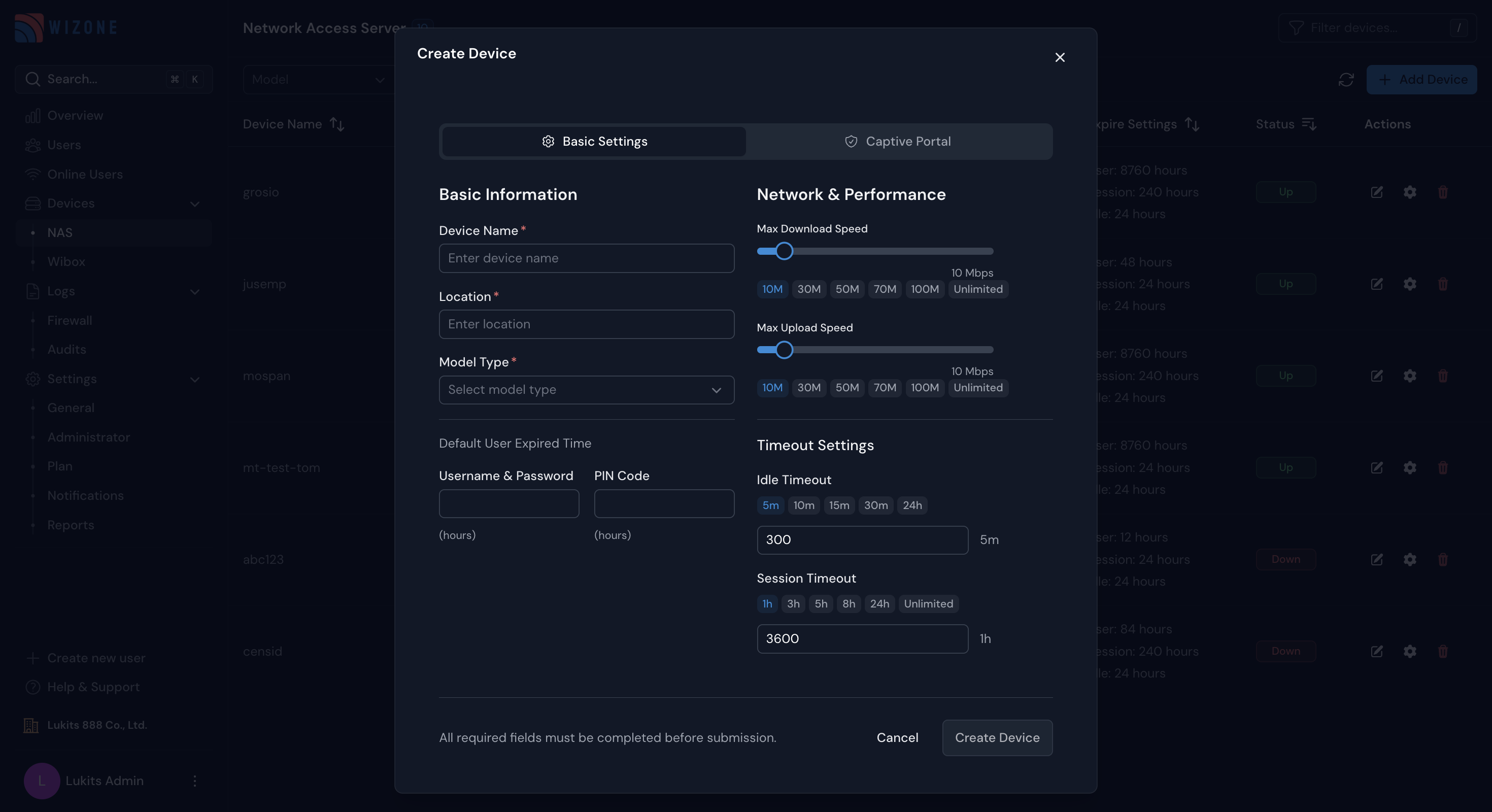
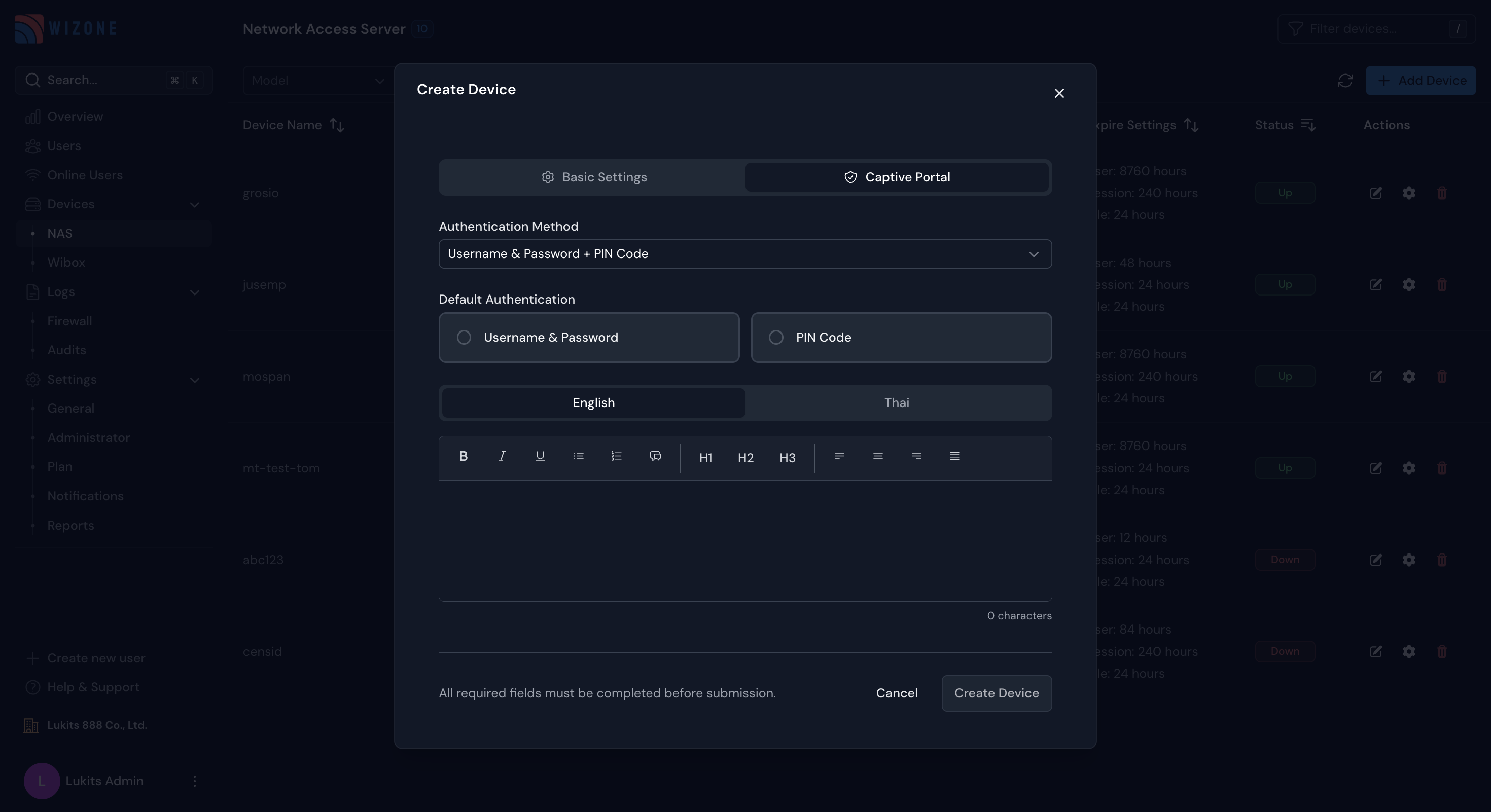
Click + Add NAS to register a new NAS with WiZone.
1. Basic Settings
- NAS Name & Location – Identify where the NAS is deployed.
- Model Type – Choose between pfSense or Mikrotik.
- Bandwidth Control – Adjust Max Download/Upload Speed.
- Timeouts – Define Idle Timeout and Session Timeout durations.
2. Captive Portal Settings
- Authentication Method – Choose between:
Username & PasswordPIN Code- or
Username & Password + PIN Code
- Default Authentication – Select which method is used by default.
- Language Tabs – Customize login messages in English and Thai.
Online Users
Monitor all currently active users connected to your network in real time. View session details, bandwidth usage, and connection information.
Firewall Logs
The Firewall Logs page provides detailed visibility into log files collected from connected NAS (Network Access Servers), including pfSense and Mikrotik devices. It helps administrators monitor security events, and download archived logs.