Mikrotik Setup for WiZone
Mikrotik Configuration Guide for WiZone
This guide provides step-by-step instructions for configuring Mikrotik RouterOS to connect your local Wi-Fi network with the WiZone Cloud Platform using WireGuard VPN and RADIUS authentication.

Step 1 – Create WireGuard Interface
- Go to Interfaces → Add → WireGuard
- Configure as follows:
| Field | Value |
|---|---|
| Name | wizone |
| Type | WireGuard |
| Listen Port | 13231 |
| Private Key | EDIDrUa54c4iwMrWXJ0ZqwYHKjgu6FdOuzpKcap97XY= |
- Click Apply → OK to save.
After creation, the WireGuard interface will be used to establish a secure VPN tunnel between Mikrotik and the WiZone Gateway.
Step 3 – Add WireGuard Peer (WiZone Gateway)
Once the WireGuard interface is created, the next step is to add a Peer that connects your Mikrotik router to the WiZone Gateway.
- Go to Interfaces → WireGuard → Peers → Add (+)
- Configure the following fields:
| Field | Value |
|---|---|
| Name | wzpeer |
| Interface | wizone |
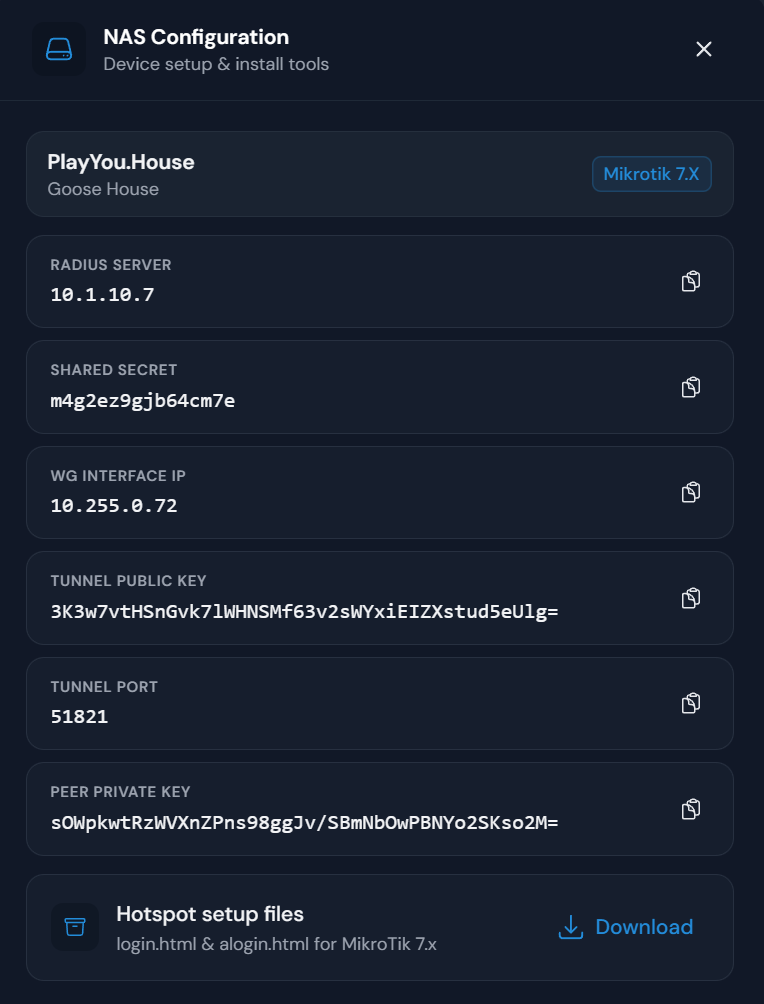
| Public Key | 3K3w7vtHSnGvk7lWHNSMf63v2sWYxiElZXstud5eUlg= |
| Endpoint Address | wg2.wizone.io |
| Endpoint Port | 51821 |
| Allowed Address | 10.1.10.0/24, 10.255.0.1/32 |
| Persistent Keepalive | 25s |
| Responder | (leave unchecked) |
Click Apply → OK to save the configuration.
This setup defines the WiZone Gateway as the remote peer and allows your Mikrotik device to maintain a continuous, secure VPN tunnel using periodic Keepalive packets every 25 seconds.
It ensures stable communication between your local deployment and the WiZone platform.

Step 3 – Assign IP Address and Configure DHCP
After creating the WireGuard interface and peer, assign IP addresses for both the VPN tunnel (WireGuard) and the local Hotspot interface.
This ensures proper routing between your internal network and the WiZone Gateway.
3.1 Assign IP to WireGuard Interface
- Go to IP → Addresses → Add (+)
- Set the following values:
| Field | Value |
|---|---|
| Address | 10.255.0.16/24 |
| Network | 10.255.0.0 |
| Interface | wizone |
- Click Apply → OK
This IP represents the local endpoint of your WireGuard VPN tunnel. It enables secure communication with the WiZone gateway.

3.2 Create IP Pool and DHCP Server
- Go to IP → DHCP Server → Add (+)
- Configure:
- Name:
wifi_dhcp - Interface:
ether5 - Address Pool:
wifi_pool
- Name:
- Click Apply → OK
This ensures that connected Wi-Fi clients receive automatic IP addresses within the correct subnet managed by the Mikrotik router.

3.3 Create IP Pool for DHCP Server
The IP Pool defines the range of IP addresses that your DHCP server will assign automatically to connected Wi-Fi clients.
This ensures that each device receives a valid IP address within the same subnet.
- Go to IP → Pool → Add (+)
- Enter the following details:
| Field | Value |
|---|---|
| Name | wifi-pool |
| Addresses | 10.10.252.10–10.10.255.254 |
| Next Pool | none |
- Click Apply → OK to save.
This pool will be linked to your DHCP Server configuration in the next step, enabling automatic IP assignment for all users connected through the WiZone Hotspot.

Tip:
Keep the IP range slightly below the broadcast address (e.g.,.254) and exclude the gateway (10.10.252.1) from the pool to prevent conflicts.
Allow Hostnames and Configure Log Settings
This section explains how to allow specific hostnames in Captive Portal and configure both local and remote logging options for WiZone.
Configure Static Routes for WiZone
This section explains how to add static routes for RADIUS and WireGuard connections to ensure proper communication with the WiZone platform.