Mikrotik Setup
HTTPS Certificate
Auto-provision a Let's Encrypt certificate for your MikroTik captive portal using WiZone ACME API.
How it works: WiZone provides an ACME API that issues a Let's Encrypt certificate automatically. MikroTik fetches and renews it every 7 days via a built-in scheduler — no manual renewal needed.
Step 1 – Set Up Subdomain in WiZone Portal
- Log in to WiZone Portal → go to your NAS device page.
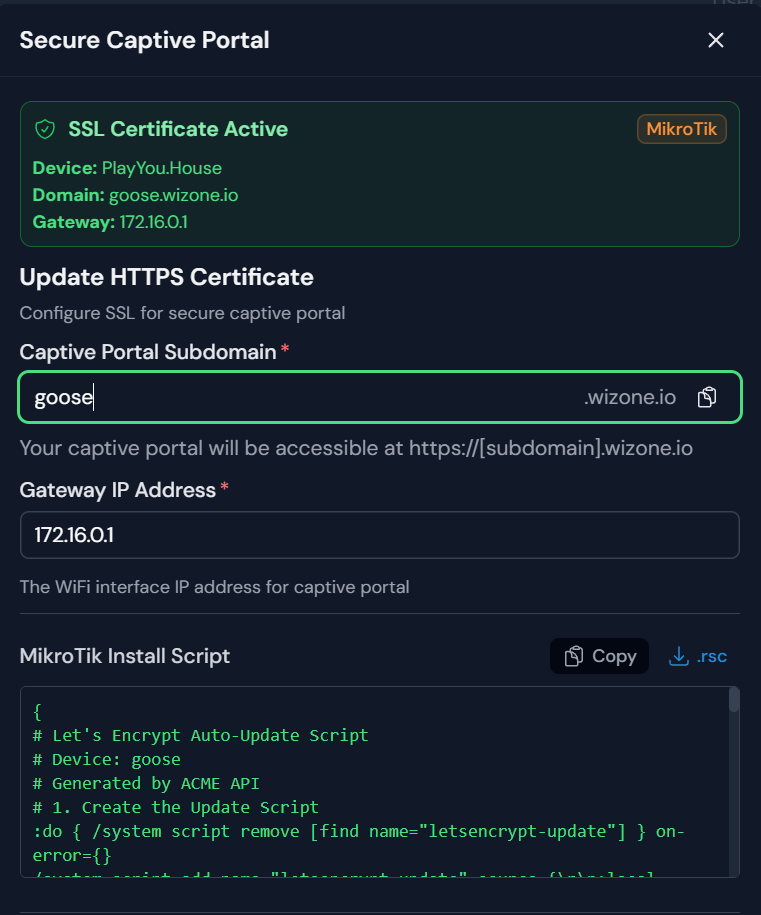
- Click Secure Captive Portal.
- Configure:
| Field | Value |
|---|---|
| Captive Portal Subdomain | Your chosen name (e.g. goose) |
| Gateway IP Address | 172.16.0.1 (must match your Hotspot interface IP) |
- The Portal will show your full domain:
https://[subdomain].wizone.io
Step 2 – Run the Install Script on MikroTik
- In the Secure Captive Portal page, click Copy or .rsc to get the script.
- Open WinBox → Terminal.
- Paste the entire script and press Enter.
- Wait a moment — the script will automatically:
- Create a script named
letsencrypt-updateto fetch the certificate - Create a scheduler named
letsencrypt-renewrunning every 7 days at 3:00 AM - Run an initial certificate fetch immediately
- Create a script named
Step 3 – Enable HTTPS in Server Profile
Go to IP → Hotspot → Server Profiles tab → double-click hsprof1.
Login tab:
| Field | Value |
|---|---|
| HTTPS | ✅ Checked |
| SSL Certificate | Should show letsencrypt (set automatically by script) |
Click Apply → OK.
Step 4 – Set DNS Name in Server Profile
In the same hsprof1 profile:
| Field | Value |
|---|---|
| DNS Name | [subdomain].wizone.io (e.g. goose.wizone.io) |
Click Apply → OK.
The DNS Name must exactly match the subdomain registered in the Portal. A mismatch will cause a certificate error in users' browsers.
Step 5 – Add Walled Garden Entry for ACME API
Go to IP → Hotspot → Walled Garden IP List tab → Add (+):
| Field | Value |
|---|---|
| Action | accept |
| Dst. Host | api-acme.wizone.io |
Click Apply → OK.
This allows the scheduler to fetch the certificate even while Hotspot is running.
Verify
Check certificate is installed:
Open WinBox Terminal and run:
/certificate print
→ You should see a certificate with private-key=yes and a name containing letsencrypt.

Check HTTPS captive portal on a phone:
Connect to Wi-Fi and open a browser.
| Result | Meaning |
|---|---|
Redirects to https://[subdomain].wizone.io with green padlock | ✅ HTTPS working correctly |
| Shows "Not Secure" or certificate error | ❌ Check DNS Name matches subdomain |

Check auto-renew scheduler:
/system scheduler print where name="letsencrypt-renew"
→ Should show interval=7d and on-event=letsencrypt-update.
To force an immediate certificate renewal:
/system script run letsencrypt-update