WiZone Portal
User Management
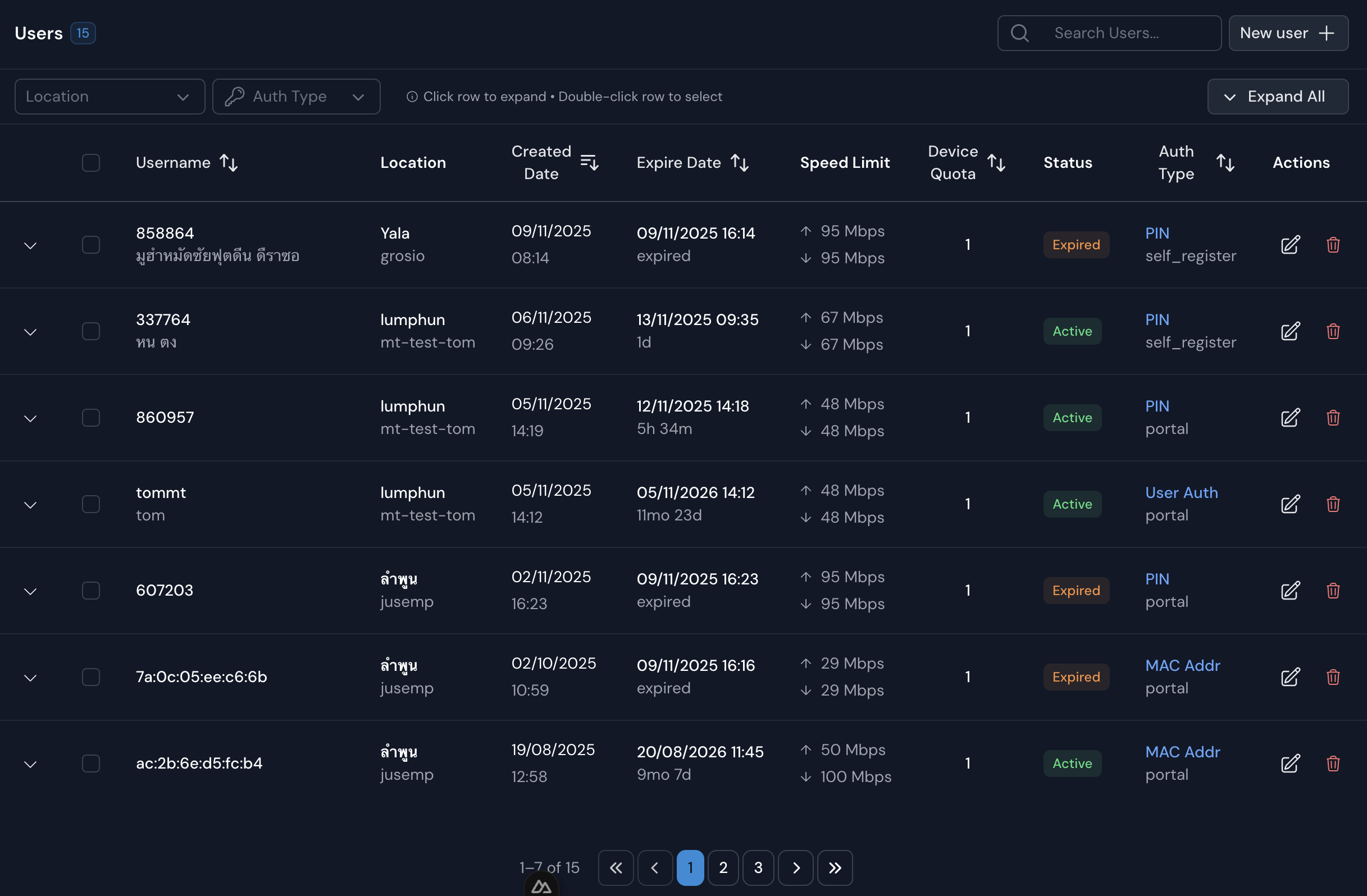
Overview of the Users page in the WiZone dashboard, including account details, authentication types, and management options.
WiZone User Management
The Users page provides administrators with a centralized view of all Wi-Fi users, their connection details, and access status. It helps manage authentication, speed limits, and device quotas with full visibility and control.
| Column | Description |
|---|---|
| Username | The unique ID or name assigned to each user. Used for login or identification. |
| Location | Indicates where the user registered or connected from (e.g., Yala, Lumphun). |
| Created / Expire Date | Shows when the account was created and when it expires. Expired accounts are automatically marked as inactive. |
| Speed Limit | Defines upload and download bandwidth allocated per user. |
| Device Quota | Number of devices allowed to connect under the same user account. |
| Status | Displays current connection state — Active (online) or Expired (access disabled). |
| Auth Type | Shows the login method — PIN, MAC Addr, or User Auth. |
| Actions | Quick tools to edit or delete a user directly from the table. |
Tips
- Use the search bar to filter users by name or authentication type.
- Click a row to expand details such as session history and bandwidth usage.
- Double-click a row to edit user details instantly.
Create User
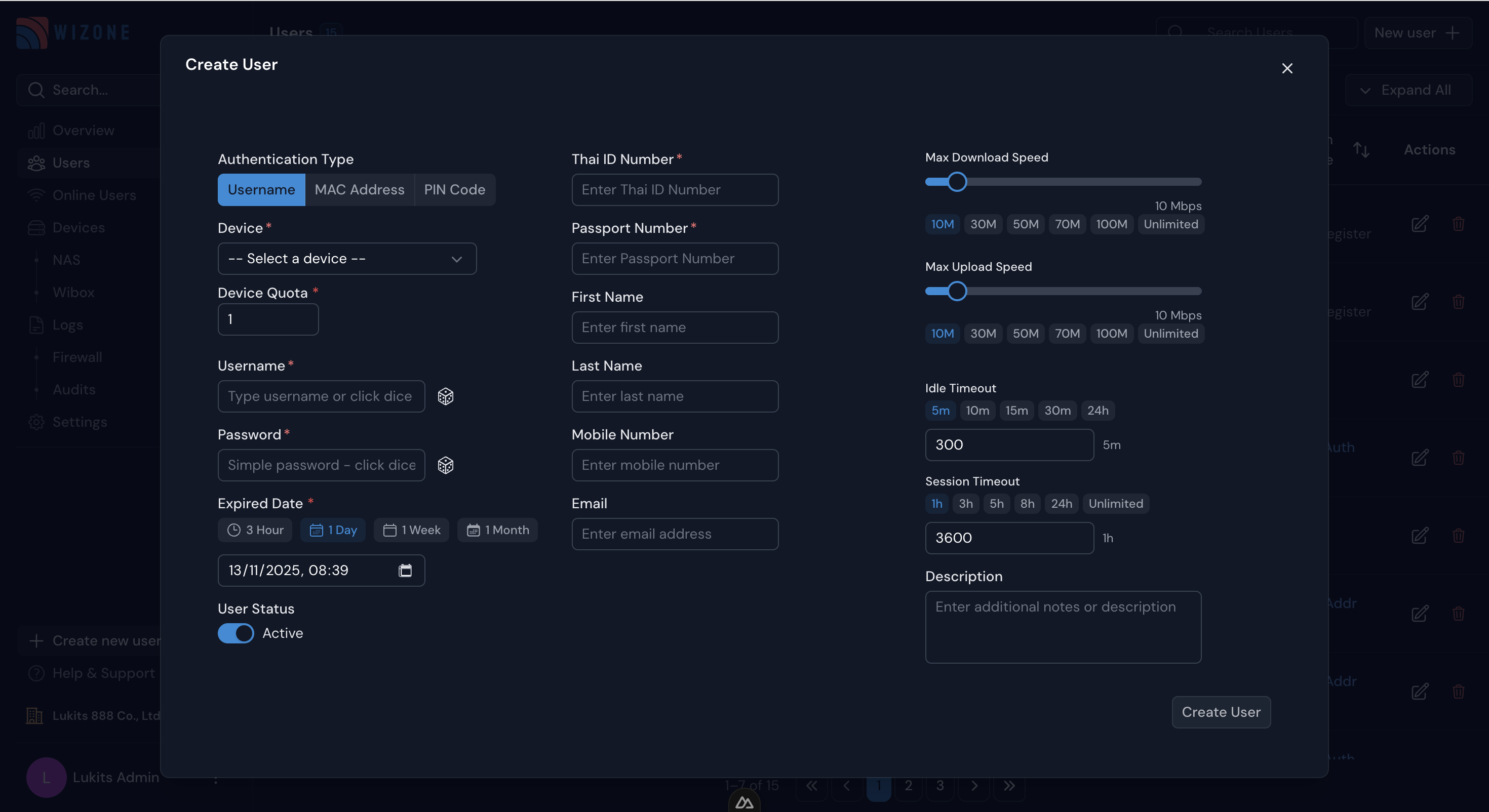
The Create User form allows administrators to manually add Wi-Fi users to the WiZone platform. Each user can be assigned custom authentication types, network limits, and access durations.
| Section | Description |
|---|---|
| Authentication Type | Choose between Username, MAC Address, or PIN Code authentication methods. |
| NAS | Select which NAS (router or access point) this user will connect through. |
| Device Quota | Set the number of devices allowed per account (default: 1). |
| Username / Password | Generate or manually input login credentials. |
| Expired Date | Define the access duration. |
| User Status | Toggle between Active (enabled) or Inactive (disabled) states. |
| Identity Information | Optionally fill in Thai ID, Passport, First & Last Name, Mobile Number, and Email for record keeping. |
| Speed Control | Adjust Max Download and Max Upload speeds (10–100 Mbps or Unlimited). |
| Timeouts | Configure Idle Timeout (disconnect when inactive) and Session Timeout (max session duration). |
| Description | Add notes or usage remarks for internal reference. |
Example
Pro Features
Features labeled with the Pro tag (e.g., advanced timeouts, custom quotas) are available for Premium-tier administrators.