pfSense Setup
WireGuard Connection
This section shows you how to enable the WireGuard service, apply the required firewall rules, and confirm that your device is successfully connected to WiZone.
Step 1 - Add Firewall Rule
After enabling the WireGuard service, you need to allow traffic to pass through the new interface
(
(
WG_WiZone ).- Go to Firewall → Rules, then select the interface you created earlier (e.g., WG_WiZone).
- Click the Add icon:
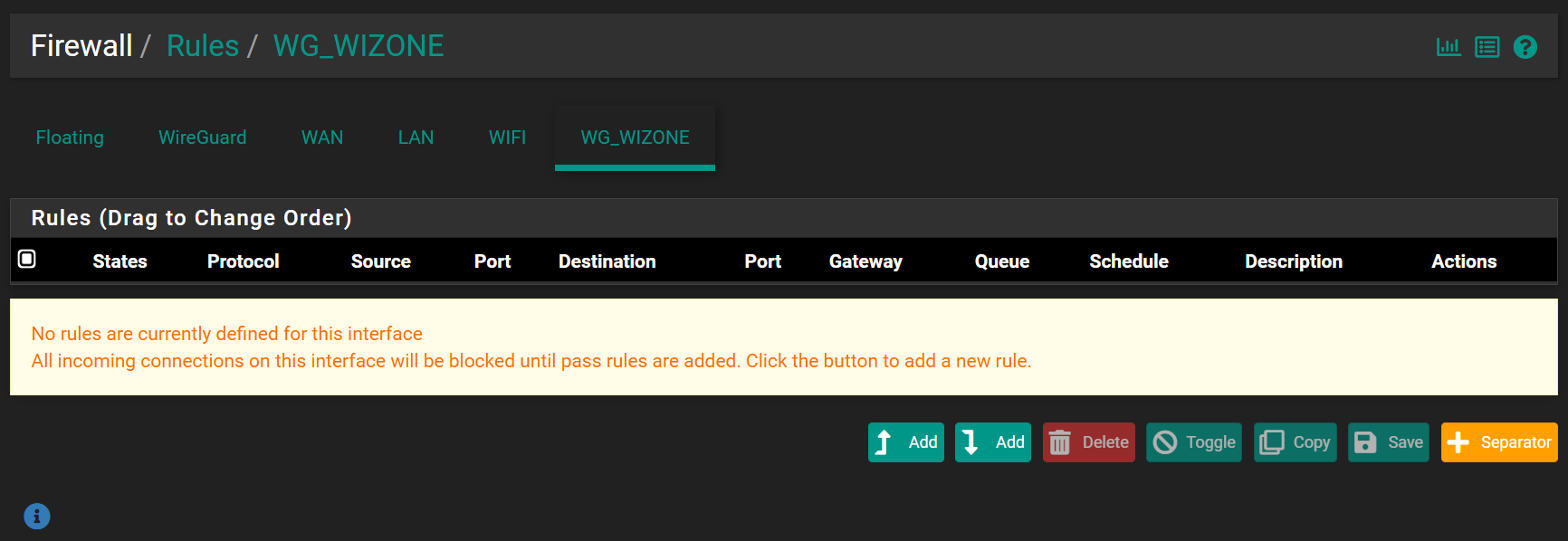
- Configure the rule using the settings below, then click Save.
| Field | Value | Description |
|---|---|---|
| Action | Pass | Allows all matching traffic through |
| Interface | Select your WireGuard interface(eg., WG_WiZone) | WireGuard interface |
| Protocol | Any | Allow all protocols |
| Source/Destination | Any | Allows traffic from and to any address |

Step 2 - Check Connection Status
- Go to VPN → WireGuard → Status.
- Confirm
tun_wg0is active (green arrow). - Ensure RX/TX values are increasing.
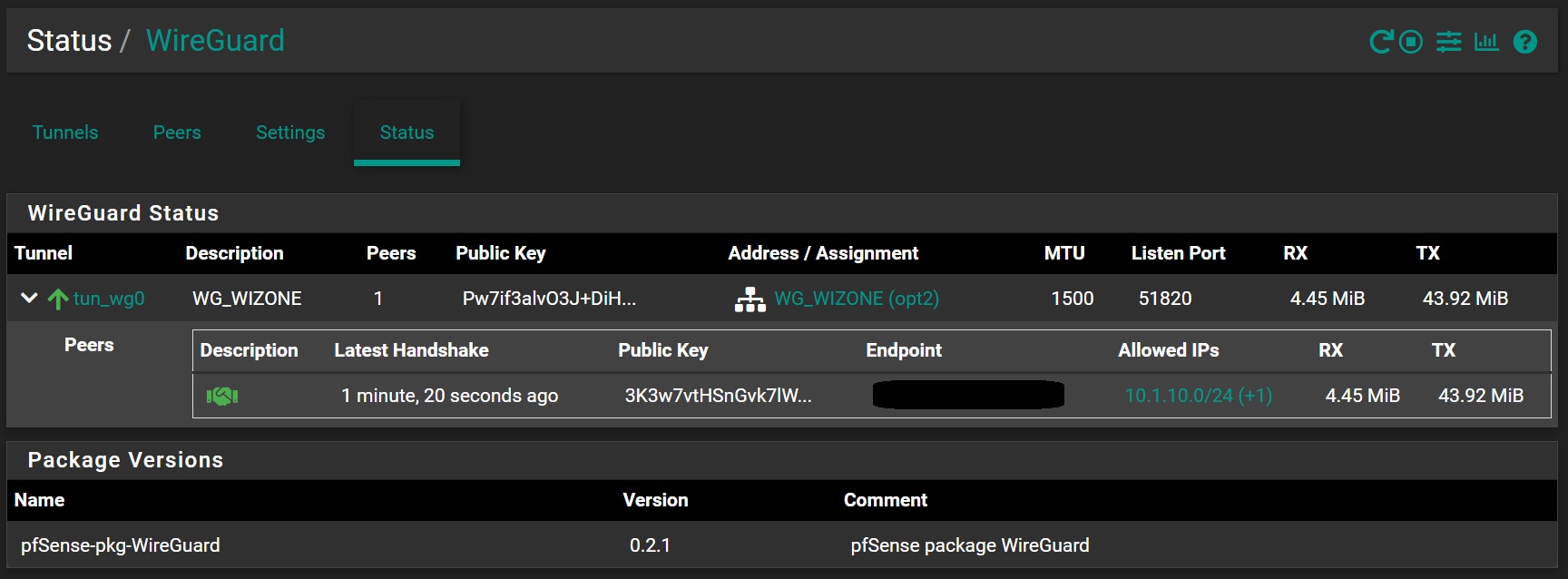
Connection Active:
If the Latest Handshake updates and the data counters increase, your WireGuard connection is active.
If the Latest Handshake updates and the data counters increase, your WireGuard connection is active.